
Getting Started
Last updated on 2026-06-30 | Edit this page
Overview
Questions
- How do I obtain the coding, data, or other resources I need to do this course?
- How do I prepare Visual Studio Code for this activity?
- How do I constrain Copilot’s suggestions to a defined set of coding standards and behaviours?
Objectives
- Clone example repository onto local machine
- Describe the example coding scenario that will be used throughout this course
- Define constraints and coding practices for this project for Copilot to follow
An Example Coding Scenario
Obtaining the Example Repository
For this lesson we’ll be using some example data held in a repository on GitHub, which we’ll clone onto our machines using the Bash shell. So firstly open a Bash shell (via Git Bash in Windows or Terminal on a Mac). Then, on the command line, navigate to where you’d like the example code to reside, and use Git to clone it. For example, to clone the repository in our home directory, and change our directory to the repository contents:
Setting up VSCode for our Project
Start by running VSCode now on your machine, and open our downloaded directory within it as a VSCode workspace.
You can do this in a couple of ways, either:
- Select the
Source controlicon from the middle of the icons on the left navigation bar. You should see anOpen Folderoption, so select that. - Select the
Fileoption from the top menu bar, and selectOpen Folder....
In either case, you should then be able to use the file browser to
locate the directory with the files you just extracted, and then select
Open. Note that we’re looking for the folder that
contains the files, not a specific file.
We also need to ensure that the Copilot extension is installed and activated. It’s installed by default on newer releases of VSCode, so may not be installed on older installations.
- Firstly, select the extensions icon, then type in “Copilot” into the search box at the top, and it’ll give you a list of all Copilot-related extensions.
- Select the one which says
GitHub Copilot Chatfrom GitHub, which is the official Copilot extension. - Either:
- It says
Disable AI Features, in which case you don’t need to do anything. - It says
Install, in which cae select that button to install it. It might take a minute - you can see a sliding blue line in the top left to indicate it’s working. You’ll be presented with a “Welcome” page for the extension which covers the main features. SelectMark Done.
- It says
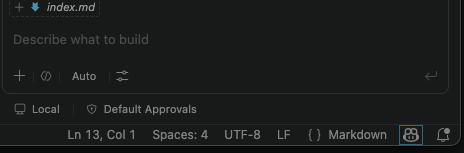
We also need to ensure we’re logged into our GitHub account. You should see a GitHub-looking icon in the status bar at the bottom right of VSCode’s window (the icon within the blue box):
- Select the icon and select
Continue with GitHub. - You’ll be redirected to a GitHub login web page to authorise Visual
Studio Code for GitHub. Select the GitHub account you wish to use and
select
Continue. - Peruse and select
Authorize Visual-Studio-Code. - You may need to further authenticate with GitHub authorise this action.
- If a pop-up appears in your browser to open a link within VSCode,
select
Open Link.
Once completed, you’ll now be able to use GitHub Copilot within VSCode.
The Scenario
The scenario involves studying the effects of a new treatment for
arthritis by analysing the inflammation levels in patients who have been
given this treatment. There are a number of datasets in the
data/ directory that each contain the result from a
separate clinical trial of the drug. Each dataset contains recorded
measurements of inflammation from 60 patients over the course of a 40
day trial.
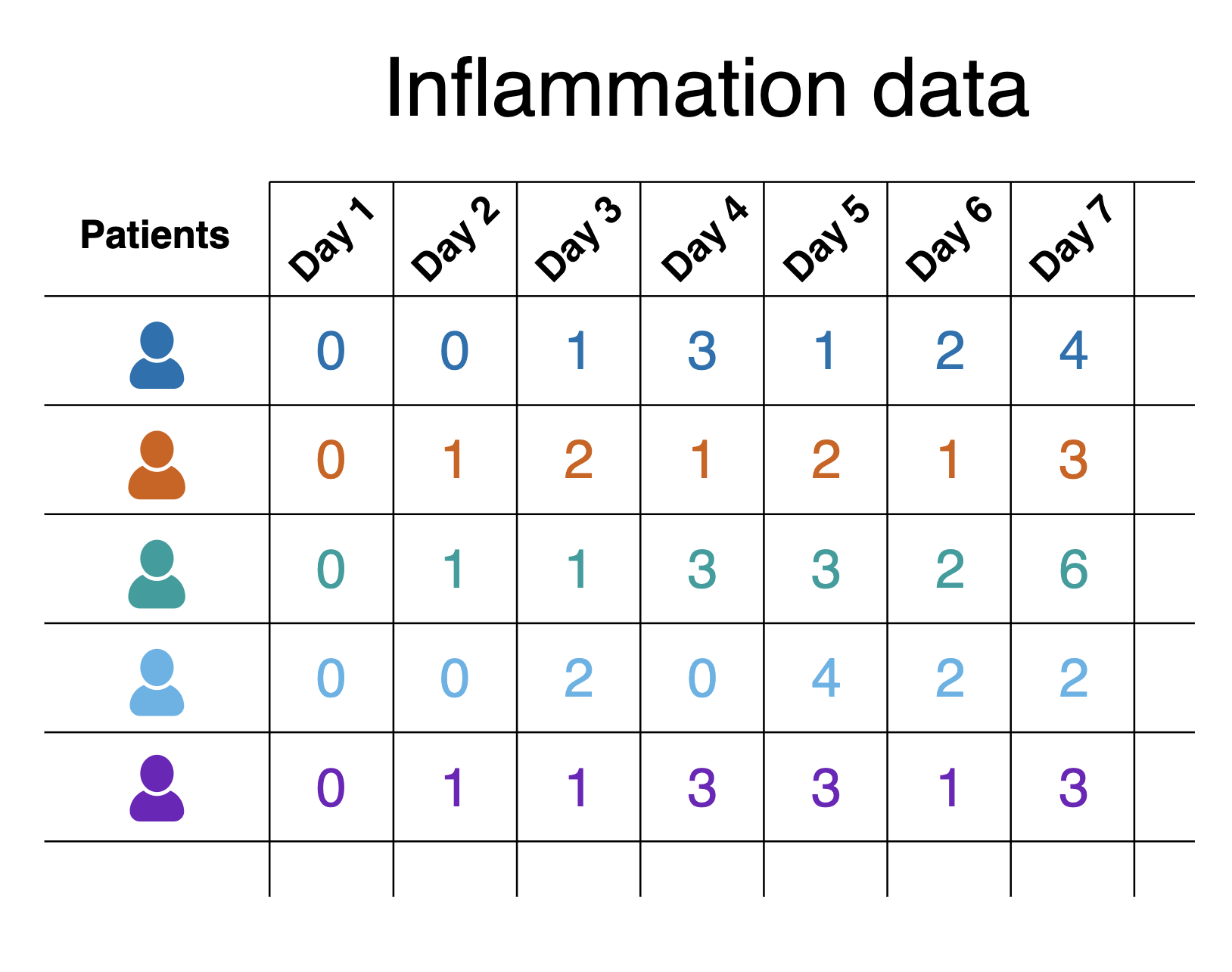
Each of the data files uses the popular comma-separated (CSV) format to represent the data, where:
- Each row holds inflammation measurements for a single patient
- Each column represents a successive day in the trial
- Each cell represents an inflammation reading on a given day for a patient
Note that the CSV files themselves contain only the data, and don’t have a header row with names for each column.
The goal of the project is to create a software tool that provides basic statistical analyses (mean value, minimum value, maximum value, and standard deviation), for a given dataset. The project has a few constraints, specifically that it must be written in Python and use the Numpy and Matplotlib Python libraries, since the group already has expertise using these technologies and they’ll wish to extend it further.
Setting up a Virtual Environment
For this scenario we are constrained to using Numpy and Matplotlib, which we’ll install before we start developing our code with Copilot’s assistance. We’re going to create what’s known as a virtual environment to hold these packages.
Benefits of Virtual Environments
Virtual environments are an indispensible tool for managing package dependencies across multiple projects, and could be a whole topic itself. In the case of Python, the idea is that instead of installing Python packages at the level of our machine’s Python installation, which we could do, we’re going to install them within their own “container”, which is separate to the machine’s Python installation. Then we’ll run our Python code only using packages within that virtual environment.
There are a number of key benefits to using virtual environments:
- It creates a clear separation between the packages we use for this project, and the packages we use other projects.
- We don’t end up with a machine’s Python installation containing a clutter of a thousand different packages, where determining which packages are used for which project often becomes very time consuming and prone to error.
- Since we are sure what our code actually needs as dependencies, it becomes much easier for someone else (which could be a future version of ourselves) to know what these dependencies are and install them to use our code.
- Virtual environments are not limited to Python; for example there are similar tools for available for Ruby, Java and JavaScript.
To create a virtual environment we’ll use the terminal (or shell).
You can open one within VSCode by selecting Terminal from
the VSCode menu and New Terminal, where you be presented
with see a Bash prompt, which looks something like:
On Windows, I only see PowerShell?
If you open a terminal on Windows but see a PowerShell prompt instead
(which looks like PS>), you’ll need to change the
default terminal type to Git Bash.
- Select
Filefrom the VSCode menu, thenPreferencesand thenSettings. - Type
terminal.integrated.defaultProfile.windowsin the search bar. - In the setting that appears, select
Git Bashfrom the dropdown. - Open a new terminal by selecting
Terminalfrom the VSCode menu, thenNew Terminal.
If you are presented with a Git Bash terminal that looks something like the following, you’re ready:
Make sure you’re in the root directory of the repository, then type:
Here, we’re using the built-on Python venv module -
short for virtual environment - to create a virtual environment
directory called “venv”. We could have called the directory anything,
but naming it venv (or .venv) is a common
convention, as is creating it within the repository root directory. This
makes sure the virtual environment is closely associated with this
project, and not easily confused with another.
Once created, we can activate it so it’s the one in use:
BASH
[Linux] source venv/bin/activate
[Mac] source venv/bin/activate
[Windows] source venv/Scripts/activate
You should notice the prompt changes to reflect that the virtual environment is active, which is a handy reminder. For example:
OUTPUT
(venv) $Now we have our virtual environment, we can install NumPy and Matplotlib to it:
If we do python -m pip list now, we can see these
packages, and their dependencies, installed within the virtual
environment we have activated.
If we want to deactivate this environment, and return to the global
Python package context, we can use deactivate. To
reactivate it again, it’s the same as before:
Personalising Copilot to Match our Project
What is an Instructions File?
GitHub Copilot can be personalised by adding a instructions file to a repository that tells Copilot how you want it to behave in that project. The file acts as persistent, project-level guidance for Copilot, covering things like:
- Preferred architecture and design patterns
- Coding style and naming conventions
- Approved or banned libraries
- Testing expectations and quality standards
- Security or safety rules
- How detailed Copilot’s answers should be
By giving Copilot this shared context we can specify the developer’s (or developer team’s) coding conventions, reuse existing patterns, and avoid unwanted approaches, with the aim to make its suggestions more relevant for a particular project.
It serves a similar purposes to a CONTRIBUTING.md file
in a code repository; it provides guidance for how suggestions, code
changes and contributions should be made, but aimed at Copilot’s
day-to-day decisions instead. It does this by adding context to queries
from the .github/.copilot-instructions.md file.
For example, if we were to ask Copilot “How should I make this code more readable?”, without instructions Copilot may suggest to:
- Rename or format variable or function names inconsistently
- Change behaviour subtly in an undesired way
- Use an indentation style that isn’t typically used by team members
- Without instructions, Copilot may introduce a new design pattern the repository doesn’t use
Create an Instructions File
Let’s create our instructions file now.
For Copilot, the convention is to store various configuration, skills
and agents files within the .github directory, so let’s
create that now. Within a terminal, ensure you’re at the root of the
repository, and then:
Next, use VSCode to create a copilot-instructions.md
file within that directory, and add the following:
MARKDOWN
# Copilot Instructions for ai-tools-example

## Python Code Style
- Follow **PEP8** for all Python code
- Use 4-space indentation
- Keep lines to a maximum of 79 characters
- Use descriptive variable and function names
- Add docstrings to functions and modules

## Data Integrity
- Do NOT modify files in the `data/` directory
- The `data/` directory contains CSV files that are input data only
- Data files should only be read, never written to or deleted
- Create output files within an `output/` directory

## General Guidelines
- Write clear, maintainable code
- Test changes before committing
- Keep the workspace organized and clean
Now this is only a generic draft. As any project develops, the established conventions and rules may need to change or be expanded upon. When that happens, we come back and revise this file.
- Ensure GitHub Copilot extension is installed and you’re logged into your GitHub account.
- Create a Python virtual environment and install required packages (NumPy and Matplotlib).
- Instructions files help standardize code style, enforce data integrity, and improve Copilot’s suggestions across a whole project.