
Introduction to Job Scheduling
Last updated on 2025-11-04 | Edit this page
Overview
Questions
- What is a job scheduler and why is it needed?
- What is the difference between a login node and a compute node?
- How can I see the available resources and queues?
- What is a job submission script?
- How do I submit, monitor, and cancel a job?
- How (and when) should I use an interactive job?
Objectives
- Describe briefly what a job scheduler does
- Contrast when to run programs on an HPC login node vs running them on a compute node
- Summarise how to query the available resources on an HPC system
- Describe a minimal job submission script and parameters that need to be specified
- Summarise how to submit a batch job and monitor it until completion
- Summarise the process for requesting and using an interactive job
An HPC cluster has thousands of nodes shared by many users. A job scheduler is the software that manages this, deciding who gets what resources and when. It ensures that tasks run efficiently and fairly, matching a job’s resource request to available hardware. On Iridis, the scheduler is Slurm, but the concepts are transferable to other schedulers such as PBS.
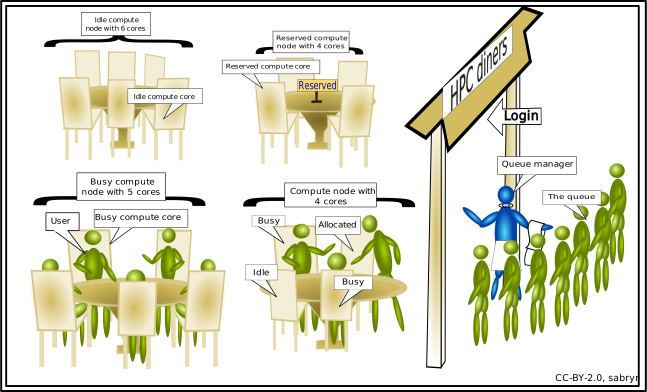
The scheduler acts like a manager at a popular restaurant. You must queue to get in, and you must wait for a table to become free. This is why your jobs may sit in a queue before they start, unlike on your computer. In this episode, we’ll look at what a job scheduler is and how you interact with it to get your jobs running on Iridis.
Can I run jobs on the login nodes?
On Iridis, and all HPC clusters, the login nodes are intended only for light and short tasks such as editing files, managing data, compiling code and submitting/monitoring jobs in the queue.
You must not run computationally intensive or long-running tasks on them. Login nodes are a shared resource for all users to access the system, and so running intensive jobs on them slows the system down for everyone. Any such process will be ended automatically, and repeated misuse may lead to your access to Iridis being restricted. To enforce this, login nodes have strict resource limits. You are limited to 64 GB of RAM and 2 CPUs (Iridis X also provides an NVIDIA L4 GPU).
All computationally intensive work must be submitted to the job scheduler. This places your job in a queue, and Slurm will allocate dedicated compute node resources to it when they become available. If you are compiling a large, complex codebase which requires more resources, or need to transfer large amounts of data, you should probably perform the tasks on a compute node instead. You can do this by submitting a job or by starting an interactive session, both of which we will cover later.
Querying available resources
Compute nodes in Slurm are grouped together and organised into
different partitions. You can think of a partition as
the actual queue for a certain set of hardware. Clusters are made up of
different types of compute nodes, e.g. some with lots of memory, some
with GPUs, some with restricted access, and some that are just
“standard” compute nodes. The partitions are how Slurm organises this
hardware. Each partition has its own rules, such as a maximum run time,
who can access the resources in it or a limit on the number of nodes
that can used at once. To find what the partitions are on Iridis 6 and
their current state, we can use the sinfo command:
BASH
[iridis6]$ sinfo -s
PARTITION             AVAIL  TIMELIMIT   NODES(A/I/O/T) NODELIST
batch*                   up 2-12:00:00      99/35/0/134 red[6001-6134]
highmem                  up 2-12:00:00          3/1/0/4 gold[6001-6004]
worldpop                 up 2-12:00:00          0/6/0/6 red[6135-6140]
scavenger                up   12:00:00          0/6/0/6 red[6135-6140]
interactive_practical    up   12:00:00          1/0/0/1 red6128
The -s flag outputs a summarised version of this list.
Omitting this flag provides a full listing of nodes in each queue and
their current state, which gets quite messy.
We can see the availability of each partition/queue, as well as the
maximum time limit for jobs (in days-hours:minutes:seconds
format). For example, on the batch queue there is a two and a half day
limit, whilst the scavenger queue has a twelve hour limit. The *
appended to the batch partition name indicates it is the preferred
default queue. The NODES column indicates the number of nodes in a given
state,
| Label | State | Description |
|---|---|---|
| A | Active | These nodes are busy running jobs. |
| I | Idle | These nodes are not running jobs. |
| O | Other | These nodes are down, or otherwise unavailable. |
| T | Total | The total number of nodes in the partition. |
Finally, the NODELIST column is a summary of the nodes belonging to a
particular queue; if we didn’t use the -s option, we could
get a complete list of each node in each state. In this particular
instance, we can see that 35 nodes are idle in the batch partition, so
if that queue fits our needs we may decide to submit to that as there
are available resources.
We can find out more details about specific partitions by using the
scontrol show command, which lets us view more
configuration details of a particular partition. To see the breakdown of
the batch partition, we use:
BASH
[iridis6]$ scontrol show partition=batch
PartitionName=batch
   AllowGroups=ALL DenyAccounts=worldpop AllowQos=ALL
...
   MaxTime=2-12:00:00 MinNodes=0
...
   State=UP TotalCPUs=25728 TotalNodes=134
...
   DefMemPerCPU=3350 MaxMemPerNode=650000
This purposefully truncated output shows who does and doesn’t have access (AllowGroups, DenyAccounts) as well as details about the configuration and details of the nodes in the partition (e.g. MaxTime, MinNodes, TotalNodes, TotalCPUs). Here, we can see accounts belonging to the “worldpop” group do not have access to the batch partition.
To get more detail about a particular node in a partition we use:
BASH
[iridis6]$ scontrol show node=red6001
NodeName=red6001 Arch=x86_64 CoresPerSocket=96
   CPUAlloc=192 CPUEfctv=192 CPUTot=192
...
   RealMemory=770000 AllocMem=643200 FreeMem=531885 Sockets=2
   State=ALLOCATED
...
   Partitions=batch
This provides a detailed summary of the node, including the number of CPUs on it (CPUTot), if there are GPUs (Gres) as well as the state of the node (State), the current resources allocated to a user (CPUAlloc, AllocMem) and other interesting information.
The scavenger partition
The scavenger partition on Iridis allows you to use idle compute nodes that you do not normally have access to, ensuring those resources do not go to waste. However, this access is low-priority. If a user with access to those nodes submits a job, your scavenger job will be preempted. This means your job is automatically cancelled and put back into the queue. The scheduler will try to run it again later when other idle resources become available.
Because your job can be cancelled at any time, you should only use this partition for testing or for code that can save its progress (a technique known as checkpointing). This way, you won’t lose work if your job is preempted.
Job submission scripts
To submit a job to run, we have to write a submission
script which contains the commands that we want to run on a
compute node. This is almost always a bash script, containing special
#SBATCH directives that tells Slurm what resources you need
to run your job. A very minimal example looks something like this:
BASH
#!/bin/bash

#SBATCH --partition=batch
#SBATCH --time=00:01:00
#SBATCH --nodes=1
#SBATCH --cpus-per-task=2

# This is the command that will run
pwd
Let’s break down this Bash script. The first line we need to include
is the #!/bin/bash shebang, which let’s Slurm know the
script is a Bash script. The next four lines starting with
#SBATCH are instructions to Slurm which tell it the
resources we’ve requested to run the job. In this case, we have included
the minimum batch directives you should include to submit a
job: the partition to run on, how long the job needs to run, the number
of nodes we require and the number of CPUs. The table below shows a list
of the most commonly used directives.
| Parameter | Description | Example Value |
|---|---|---|
--job-name |
Sets a name for your job. | --job-name=my_analysis |
--nodes |
Requests a specific number of compute nodes. | --nodes=1 |
--ntasks |
Requests a total number of tasks (e.g., MPI processes). | --ntasks=16 |
--ntasks-per-node |
Specifies the number of tasks to run on each node. | -ntasks-per-node=8 |
--cpus-per-task |
Requests a number of CPU cores for each task (e.g., for OpenMP threads). | --cpus-per-task=4 |
--time |
Sets the maximum wall-clock time for the job (HH:MM:SS). | --time=01:30:00 |
--partition |
Specifies the queue (partition) to submit the job to. | --partition=highmem |
--gres |
Requests generic resources, most commonly GPUs. | --gres=gpu:1 |
--output |
Specifies the file to write the standard output (STDOUT) to. | --output=job_output.log |
--error |
Specifies the file to write the standard error (STDERR) to. | --error=job_error.log |
--mail-user |
Your email address for job status notifications. | --mail-user=a.user@soton.ac.uk |
--mail-type |
Specifies which events trigger an email (e.g., BEGIN, END, FAIL, ALL). | --mail-type=END,FAIL |
More directives can be found in the Slurm documentation.
So why do we request ntasks or
cpus-per-task? We can think of a task in Slurm as being an
instance of a program. Some programs are designed to run one instance of
themselves, but use many CPU cores. For programs like this, we should
request one task and 16 CPUs.
Other programs are designed to run multiple independent instances that work in parallel. For programs like this, we’d request 16 tasks and with one CPU per task.
Finally, some programs have multiple instances each using many CPU cores.
The submission script contains everything the compute node needs to
run your program correctly, from start to finish. After the
#SBATCH parameters, which have to go before your
commands, you write all of the shell commands needed to prepare
the environment and launch your code, as if you were running it for the
very first time. We need to do this because jobs essentially run from a
blank slate. The environment is not configured, so we have to configure
it. This includes, but is obviously not limited to, setting environment
variables, loading software modules, activating virtual environments (if
required) and navigating to the correct directory.
A more complete submission script, for running a Python script, would look something like this:
BASH
#!/bin/bash

#SBATCH --job-name=python-example
#SBATCH --partition=batch
#SBATCH --time=04:00:00
#SBATCH --nodes=1
#SBATCH --ntasks=1
#SBATCH --cpus-per-task=1

# Optional: print useful job info
echo "Running on host: $(hostname)"
echo "Job started at: $(date)"
echo "SLURM job ID: $SLURM_JOB_ID"
echo "Number of CPUs: $SLURM_CPUS_PER_TASK"

# Load required modules
module purge
module load python/3.11

# Activate Python virtual environment
source ~/myenv/bin/activate

# Set any environment variables or configuration options
export PYTHONUNBUFFERED=1

# Move to job directory
cd $SLURM_SUBMIT_DIR

# Run the Python script
python my_script.py --input data/input.txt --output results/output.txt
In this example, python_job.sh, we
used the following script: my_script.py. In the submission script,
you will notice that we have used environment variables starting with
$SLURM_. These are set by Slurm when a job starts running
on a compute node. A complete list of them have be found in the Slurm
documentation.
No internet access on compute nodes
On Iridis, the compute nodes do not have access to the internet. If your job script tries to download files or access any online resource, it will hang and eventually fail. You should run any short tasks that require internet access (like downloading datasets) on the login nodes before you submit your job, or in an Iridis on Demand interactive session.
Submitting, monitoring and cancelling jobs
Submitting jobs
Once we have written our submission script, we submit it to the job
queue using the sbatch command, giving it the argument the
name of our submission script.
If all goes well, you should see some output which says “Submitted batch job” followed by a job ID, which a unique ID given to the job. We’ll use this ID to manage our job such as checking the status of it or cancelling it.
Test your script before submitting it
It is always good practice to test your submission script before submitting a large or long-running job. There is nothing more frustrating than waiting hours for your job to start, only to have it crash instantly because of a simple typo or error in the script.
A good way to do this is to submit a test job that requests minimal
resources, for example: --nodes=1,
--cpus-per-task=1 and --time=00:05:00. These
small, short jobs usually have a much shorter queue time. The goal is
not to test your code at scale or get results; it is only to confirm
that the script successfully loads its modules, finds its files, and
launches the program without immediately failing. Another option would
be to use the scavenger partition, which tends to have shorter queue
times.
Monitoring jobs
We can check on the status of jobs we’ve submitted by using the
squeue command. This will show us any jobs we have waiting
in the queue or are currently running. Let’s take a look in more detail.
To take a look at only our jobs, we use:
BASH
[iridis6]$ squeue -u $USER
JOBID   PARTITION  NAME      USER     ST  TIME  NODES  NODELIST(REASON)
715860  batch      example   ejp1v21  R   0:00  1      red6085
715558  batch      video_so  ejp1v21  PD  0:00  1      (Dependency)
By using -u $USER, where $USER is the
environment variable containing our username, we only see our jobs. If
we used just squeue, we would see all the jobs which are
either currently in the queue or are running for all users and
partitions. We can also use -j to query specific job IDs.
However we choose to use squeue, it prints the details of
jobs including the partition, user and also the state of the job (in the
ST column). In this example, we can see two jobs. One is in R, or
RUNNING, state and another is in PD, or PENDING, state. A job will
typically go through the following states,
| Label | State | Description |
|---|---|---|
| PD | PENDING | The jobs might need to wait in a queue first before they can be allocated to a node to run. |
| R | RUNNING | The job is currently running. |
| CG | COMPLETING | The job is in the process of completing. |
| CD | COMPLETED | The job has completed. |
For pending jobs, you will usually see a reason for why the job is
pending in the NODELIST(REASON) column. This can be for a variety of
reasons, such as the nodes requested for job not being available, that
there are jobs in front of it in the queue, or that the job depends on
another completing first. Once the job is running, the nodes that it is
running on will be displayed in this column instead. While the
squeue table lists the common states for a successful job,
jobs can also end in failure. You may see other states, such as F
(Failed) if your program terminated with an error, OOM (Out of Memory)
if it exceeded its memory request, or CA (Cancelled) if you or an
administrator stopped it.
If we want more detail about a job, we can use
scontrol show again:
BASH
[iridis6]$ scontrol show jobid=715860
JobId=715860 JobName=example.sh
   UserId=ejp1v21(32917) GroupId=fp(245) MCS_label=N/A
   ...
   JobState=RUNNING Reason=None Dependency=(null)
   ...
   RunTime=00:00:09 TimeLimit=00:01:00 TimeMin=N/A
   SubmitTime=2025-10-29T14:58:31 EligibleTime=2025-10-29T14:58:31
   StartTime=2025-10-29T14:58:32 EndTime=2025-10-29T14:59:32 Deadline=N/A
   Partition=batch AllocNode:Sid=login6002:1385285
   NodeList=red6086
   ...
   AllocTRES=cpu=1,mem=3350M,node=1,billing=1
   ...
   Command=/iridisfs/home/ejp1v21/example.sh
   StdErr=/iridisfs/home/ejp1v21/slurm-715860.out
   StdOut=/iridisfs/home/ejp1v21/slurm-715860.out
This detailed output confirms the JobState is RUNNING (though it could be PENDING if still in the queue or COMPLETED if it had already finished). With this output we can see exactly how long the job has been running (RunTime) against its maximum allowed time (TimeLimit). It also provides a complete history, showing when the job was submitted (SubmitTime), when it reached the front of the queue (EligibleTime), and when it started running (StartTime).
The scontrol output also shows precisely where the job
is running and what resources it has (Partition, NodeList, AllocTRES).
It also tells us what script is being run (Command) and where the output
for the job will be stored (StdErr, Stdout).
Cancelling jobs
Sometimes we’ll make a mistake and need to cancel a job. This can be
done with the scancel command, giving it the ID of the job
you want to cancel:
A clean return of the command indicates that the request to cancel
the job was successful. It might take a minute for the job to disappear
from the queue, as Slurm cleans it up. If we need to do something a bit
more dramatic and cancel all of our jobs, both running and pending then
we can use the -u flag to specify the user jobs we want to
cancel,
We can also refine this to cancel only pending jobs, whilst letting
running ones finish by using the -t state flag.
Submit, monitor and cancel a Python example
Now try all of this yourself with the Python example from earlier in the episode. You should use the the Python script my_script.py and the submission script python_job.sh.
Submit your job, check in on its status in the queue and then cancel it. The job should run for around five minutes, giving you enough time to do these three steps.
First, submit the python_job.sh script using the
sbatch command.
Make a note of the Job ID (e.g., 715861) that is returned. Check the
status of your job using squeue -u $USER. You should see
your job listed, likely in the PD (Pending) state.
BASH
[iridis6]$ squeue -u $USER
JOBID   PARTITION  NAME      USER     ST  TIME  NODES  NODELIST(REASON)
715861  batch      python_job  ejp1v21  PD  0:00  1      (Priority)
Finally, cancel the job using scancel and the Job ID you
noted.
Interactive jobs
We have so far been using Slurm to submit jobs to a queue and then
waiting for them to finish. However, on Iridis we can also start an
interactive jobs where we get direct access to compute nodes via a shell
session, letting us start the jobs directly from the command line. This
is incredibly useful for debugging code which isn’t working, or for
experimenting and testing, e.g. you may want to test your submission
script using bash ./job-script.sh.
To start an interactive session use the sinteractive
command. By default, this will give a single node for 2 hours, but this
can be changed with same job parameters in a job submission script,
e.g. sinteractive --time=05:00:00 --cpus-per-task=4,
This will start an interactive session on the L4 partition on Iridis
X, for 2 hours with 1 CPU. If sufficient resources are available, the
interactive job will start immediately, otherwise, it will need to queue
to start. As resources may not be available immediately to satisfy the
requirements of an interactive job, it is normally only practical to use
interactive jobs for short jobs of a few hours or less, running on a
couple of nodes. You may also want to use sinfo -s to query
which partitions have idle nodes, and use those.
Once the interactive session has started, you are logged into the node the job has been allocated and you can run commands from as if it were a terminal session on your own computer. You can even use GUI applications as long as X-forwarding has been setup correctly.
- The job scheduler (like Slurm) manages all user jobs to ensure fair and efficient use of the cluster.
- Login nodes are for light tasks (editing, compiling); compute nodes are for running scheduled, intensive jobs.
- Use
sinfoandscontrolto query the status of partitions (queues) and nodes. - A job script is a Bash script containing
#SBATCHdirectives (resource requests) and the commands to be run. - Use
sbatchto submit a job,squeueto monitor its status, andscancelto cancel it. - Use
sinteractiveto request a live terminal session on a compute node for debugging or interactive work.